


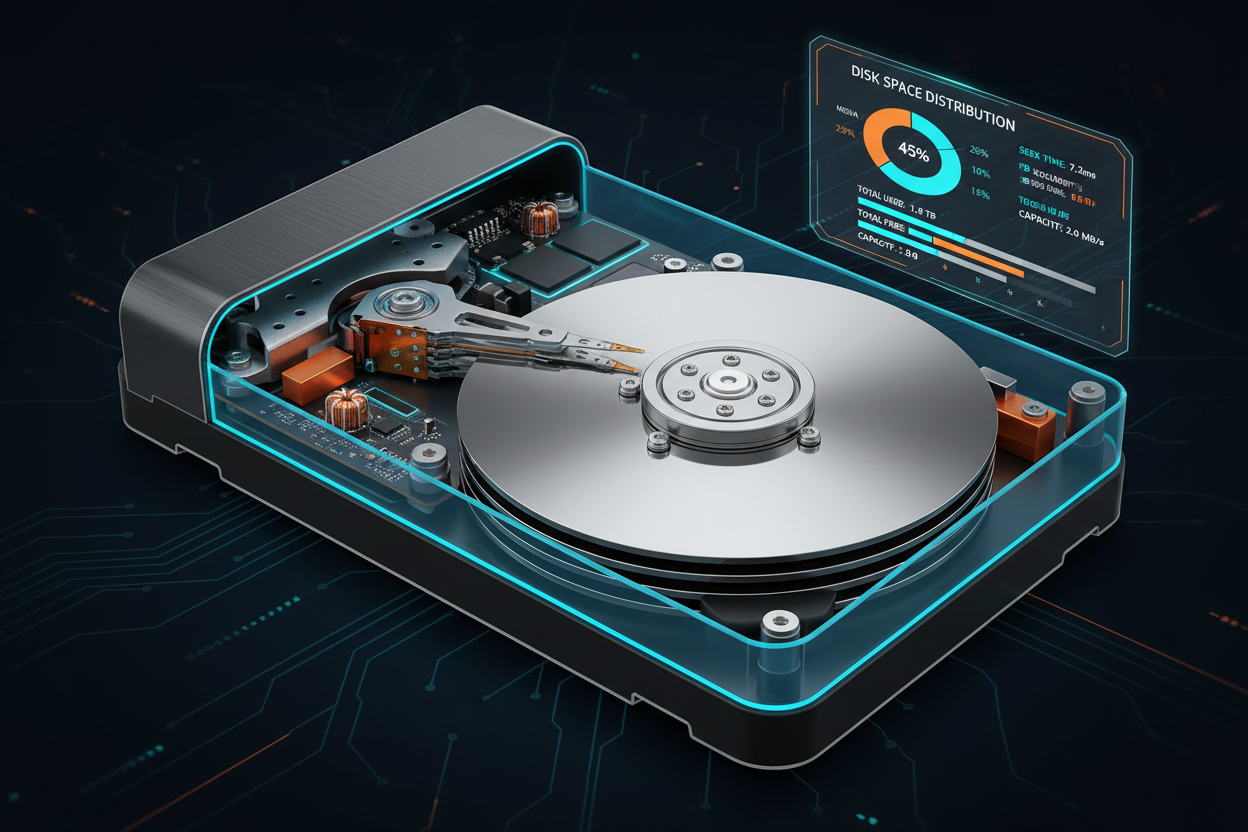
Available (free) space is a low-level detail that often gets overlooked, but it has a direct impact on how HDDs and SSDs behave over time. A drive that is pushed close to 100% capacity will almost always feel slower and less predictable than one with a buffer of unused space.
On HDDs, low free space increases fragmentation and seek overhead. As the platter fills, the file system has fewer contiguous regions available, so files are broken into more pieces and scattered across the disk surface. The drive head must move farther and more often to read a single file, which increases access time and reduces throughput. Once free space drops below, roughly, 15%, this behavior becomes more pronounced and harder for defragmentation to correct.
SSDs avoid mechanical delays but are more sensitive to free space at the controller level. Flash memory is written in pages and erased in larger blocks, so the controller constantly performs garbage collection to consolidate valid data and free up whole blocks. When there is plenty of free space, these operations are efficient and mostly invisible. But, as the drive fills, the controller has fewer clean blocks available, write amplification increases, and sustained write speeds can drop significantly. Over time, this also contributes to additional wear on the NAND memory.
File system and workload patterns add another layer. Large, sequential media files are easier for both HDDs and SSDs to handle efficiently than thousands of small, frequently updated files. System drives benefit from a consistent reserve of free space so the file system and the drive firmware have room to manage metadata, temporary files, and background maintenance. External drives, however, do not have default reserved space, unless the user is intentional about creating it.
Which brings us to Time Machine on Mac. By design, Time Machine will create snapshots and backups until the target volume is effectively full, only deleting older backups when it absolutely must. On an external backup drive, this means Time Machine can consume nearly all available space, leaving the drive with very little headroom. To avoid this, it is recommended to create a small, dedicated volume to use as a buffer, around 10% of the total capacity, and assign the remaining space as the Time Machine volume. This configuration allows Time Machine to work as intended while preventing the drive from being filled to the top.


Share: